
Upload a photo
PNG, JPG or WebP · up to 10 MB
Choose a photo to generate a video.
Turn scattered stones into a comeback image
Create a Stones to Castle AI video from a portrait. Place your character in a misty valley as scattered rocks rise into a castle for a cinematic comeback edit.
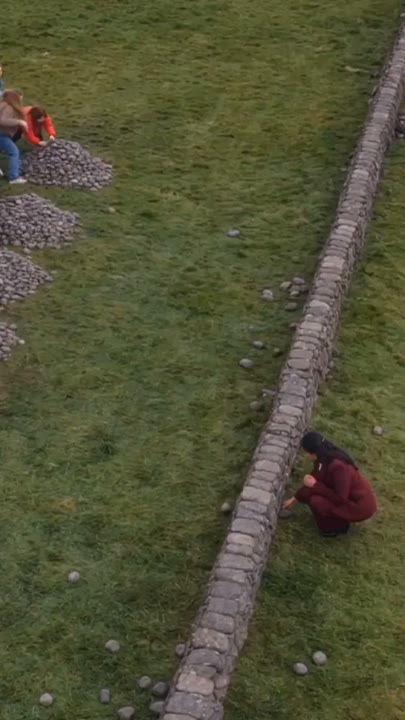
Stones to Castle turns a familiar comeback message into a visual transformation: the things scattered at your feet become the foundation of something larger. The recognizable ingredients are a red outfit, a misty green valley, rising stonework, and a calm protagonist. This single-shot interpretation starts beside the stones and reveals a castle taking shape behind the subject. It leaves out the reference's crowd confrontation and separate upper-window ending so the transformation has room to develop. Use it for a resilience message, a personal milestone, or a fantasy portrait with a clear before-and-after idea.
Best for
- Comeback-story edits
- Castle-building transformations
- Fantasy milestone portraits
Make your Stones to Castle transformation
Choose your photo
Choose one clear portrait with visible shoulders and a recognizable face. A three-quarter or full-body image provides more information for the valley pose. Keep accessories simple so the red outfit and stone transformation remain the visual focus.
Generate with the template
Add the portrait and select Generate video. The prepared scene centers on lifting one stone while a castle begins forming behind the subject, rather than compressing a crowd scene and multiple locations into one clip.
Review and download
Check the stones visibly move toward the structure instead of cutting straight to a finished castle. Review the protagonist's face, red outfit, and hand during the lift. The arch and towers should hold their shape as the camera pulls back.
Direction for the valley and rising stonework
Use this reference direction as a starting point in custom-prompt mode. The template runs fixed instructions; remixing is a separate workflow, not an edit to the preset.
Animate the person in the reference photo into a symbolic castle-building scene. Preserve the recognizable face, hairstyle, and body proportions, with a red tailored outfit. Place the person in a misty green valley beside a small pile of stones. The person calmly lifts one stone while the other rocks rise behind them and assemble into a distant Gothic arch and two towers. End with the person looking back at the emerging structure with a quiet smile. Use one continuous medium-wide shot and a slow camera pullback. Keep the face visible, the stones away from the body, and the architecture stable. No crowd, thrown impacts, extra characters, or text.
Before you create
Does this Stones to Castle preset create the entire comeback story?
It concentrates on one transformation: a calm protagonist beside stones that rise into castle architecture. The full reference includes a crowd, collecting stones, construction, and a separate window reveal. Those additional beats are better planned as distinct shots; this preset gives the central building moment a clear role in your larger edit.
Can I change the creative direction?
The preset uses fixed instructions. Copy the reference direction into custom-prompt mode to adapt it; this does not change the preset itself.
What video output should I expect?
The default length is 12s (reference ratio 406/720). The output follows your uploaded photo's aspect ratio and suits Comeback-story edits, Castle-building transformations, Fantasy milestone portraits.
Build a visual chapter of your comeback
Choose a clear portrait and create a symbolic valley scene where scattered stones become the start of something larger, with your character at the center.