
Upload a photo
PNG, JPG or WebP · up to 10 MB
Choose a photo to generate a video.
A controlled move with a grey-blur finish
Make a Photogenic Filter AI video from one full-body photo. Guide a controlled pose, a color-to-grey transition and a soft motion trail around your subject.
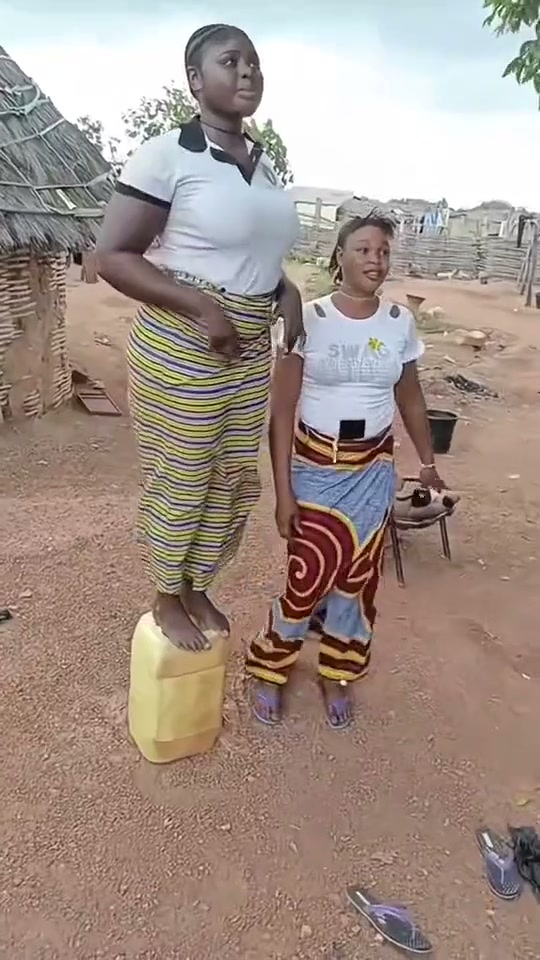
Photogenic Filter uses a sudden loss of color to give an everyday movement a dramatic finish. The reference shows a woman in a patterned skirt standing in an outdoor courtyard, stepping forward abruptly and dropping toward the ground; the closing view turns grey. The sudden movement and monochrome ending give the scene its comic punctuation. For your own portrait, guide a controlled step or turn with a grey drop, soft radial blur and a restrained trail. A brief pause at the end gives the new treatment time to read while the face and outfit remain the center of attention.
Best for
- A streetwear portrait
- a full-body outfit picture or a short expression-driven reel where one clear move leads into a monochrome finish. A plain path or courtyard gives the blur room to spread without hiding the person. Keep the action short so the change of treatment remains the main event.
Create your photo-led monochrome transition
Choose your photo
For the Photogenic Filter, use one sharp full-body image with visible feet, arms separated from the torso and a clear face. A stable standing pose leaves room for a step or a small turn. Prefer balanced daylight and a background with a few simple edges; dense patterns can become distracting when the motion trail appears.
Generate with the template
Keep a short step or turn, then review the grey-drop and soft-trail direction before starting the animation.
Review and download
Check that the color drains across the whole picture rather than changing skin tones alone. The face should remain readable while the trail sits behind the moving silhouette. Look for duplicate hands, a distorted hemline or a bent horizon, especially during the transition into grey.
Guide the color drop and soft motion trail
Use this reference direction as a starting point in custom-prompt mode. The template runs fixed instructions; remixing is a separate workflow, not an edit to the preset.
Animate the person in the uploaded full-body image while preserving their recognizable face, hairstyle, outfit, body proportions and original setting. Use a steady camera as they make one controlled forward step and a small confident turn toward the lens. Begin in natural color, then transition the whole frame into soft grey monochrome. Add a restrained radial blur around the subject and a faint trailing silhouette behind their movement while keeping the face readable. Finish in a balanced standing pose. Keep hands, feet and clothing coherent, with no extra people, text or cuts.
Before you create
Does this apply an exact filter to a video I already filmed?
The preset generates a new clip from one image. It does not process an uploaded video or reproduce a fixed editing-template timeline. The direction asks for the grey transition and controlled blur; review the actual timing, face detail and movement in your result.
Can I change the creative direction?
The preset uses fixed instructions. Copy the reference direction into custom-prompt mode to adapt it; this does not change the preset itself.
What video output should I expect?
The default length is 5s (reference ratio 540/960). The output follows your uploaded photo's aspect ratio and suits A streetwear portrait, a full-body outfit picture or a short expression-driven reel where one clear move leads into a monochrome finish. A plain path or courtyard gives the blur room to spread without hiding the person. Keep the action short so the change of treatment remains the main event..
Try the Photogenic Filter video direction
Start with a clear standing photo and create a brief color-to-grey movement around your own appearance.