
Upload a photo
PNG, JPG or WebP · up to 10 MB
Choose a photo to generate a video.
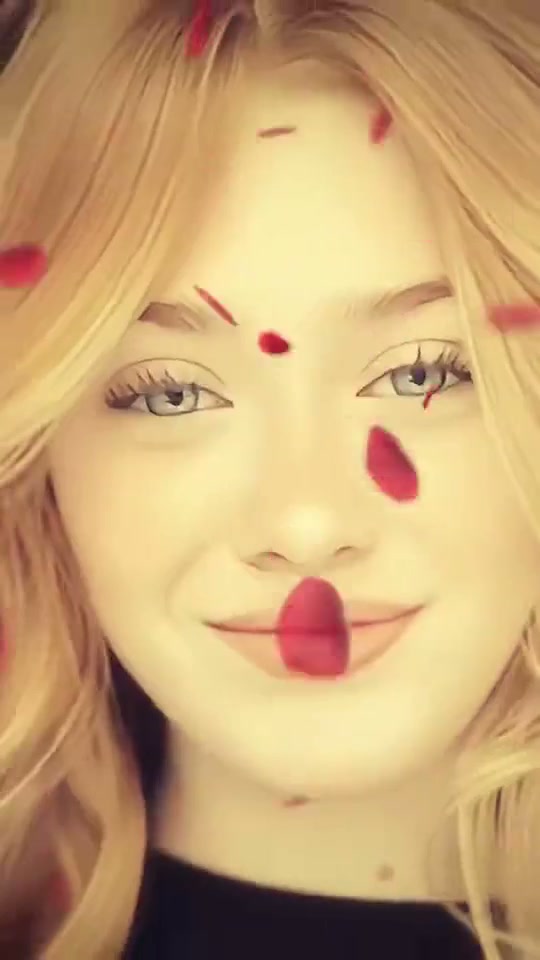
Rose petals around a close portrait
Turn a selfie into a Come and Get It AI video. Add drifting rose petals, warm golden light and a soft black-and-white transition around a clear close portrait.
Come and Get It frames the face with falling rose petals and a change in color. The selected reference shows a golden portrait, a slight head tilt and a monochrome finish. The authored direction keeps those visual ingredients together in a gentle close-up. Petals provide the foreground movement while the subject remains easy to recognize; a small expression change is enough to carry the edit.
Best for
- A romantic portrait
- a soft selfie animation or a rose-petal dedication. It works well when the eyes and a little space above the head remain visible.
Prepare a clear selfie
Choose your photo
Use a well-lit head-and-shoulders image with a clear face and an uncluttered background. Leave room around the forehead for falling petals. Avoid strong beauty filters, hair covering both eyes or petals already obscuring the face.
Generate with the template
Keep the face still enough to read while petals drift past. Use one slow color transition and a slight camera push for a coherent short portrait.
Review and download
Look for smooth petal movement and consistent eyes through the color change. Petals can pass in front of the portrait briefly, but should not stick to the skin or replace facial features.
Set the petals and color change
Use this reference direction as a starting point in custom-prompt mode. The template runs fixed instructions; remixing is a separate workflow, not an edit to the preset.
Animate the uploaded close portrait while preserving the subject's recognizable face, eyes, hair, clothing and proportions. Start in soft warm golden light. A few red rose petals drift down slowly at different depths, with most staying away from the eyes. Let the subject make a slight head tilt, blink naturally and hold a small relaxed smile. Move the camera forward very gently. Toward the end, change the portrait gradually into a clean monochrome look while maintaining the same face and framing. Keep the background quiet and the skin texture natural. No extra face, exaggerated mouth movements, exact song lyrics, original recording, petals attached to skin, captions or rapid cuts.
Before you create
Will the face follow the exact song lyrics?
This direction creates a rose-petal portrait with subtle expression and camera movement. It does not request a particular recording or precise lyric lip synchronization; the reference is visual inspiration.
Can I change the creative direction?
The preset uses fixed instructions. Copy the reference direction into custom-prompt mode to adapt it; this does not change the preset itself.
What video output should I expect?
The default length is 12s (reference ratio 540/960). The output follows your uploaded photo's aspect ratio and suits A romantic portrait, a soft selfie animation or a rose-petal dedication. It works well when the eyes and a little space above the head remain visible..
Give your portrait the petal edit
Choose your selfie and turn a simple expression into a warm rose-petal video.