
Upload a photo
PNG, JPG or WebP · up to 10 MB
Choose a photo to generate a video.
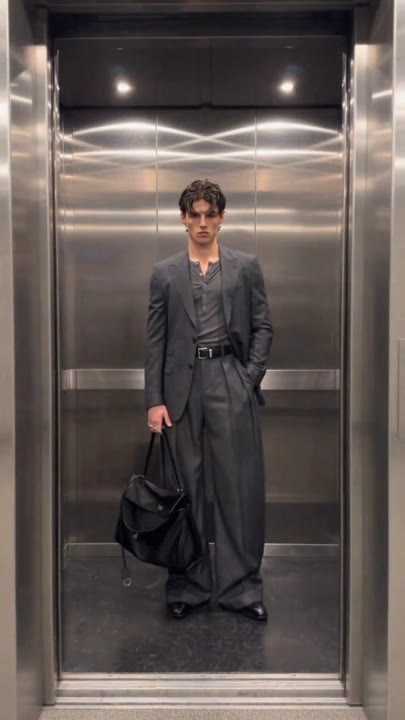
Let the elevator doors reveal the new look
Make an elevator outfit change AI video from your photo. Close the doors, reveal a new evening look, and finish with a confident step in a simple fashion edit.
The elevator outfit change effect makes the doors do the editing: one look disappears behind metal panels and another appears when they reopen. This template uses a single wardrobe change, from the uploaded outfit into a dark evening look, followed by one small step forward. A fixed camera and unchanged elevator light help viewers compare the two looks without following a moving scene. The simpler structure gives the reveal more space than a rapid three- or four-outfit montage. Use it for an OOTD transition, a character makeover, or a short day-to-evening fashion introduction.
Best for
- Elevator fit checks
- Day-to-evening transitions
- Single-look fashion reveals
Create your Elevator Outfit Change video
Choose your photo
Upload one full-body or three-quarter portrait with a visible face, shoes, and clothing silhouette. Keep arms clear of the torso and choose a straight standing pose. A tight selfie gives the scene less information about the outfit.
Generate with the template
Add the standing portrait and select Generate video. The preset closes the elevator doors once, reopens on a dark evening outfit, and finishes with a small forward step in the same setting.
Review and download
Check the doors close completely before the new look appears. Compare the face, hair, height, and body proportions on both sides of the transition. Inspect the final step for grounded shoes and an elevator opening that remains the same size.
Direction for the door-hidden wardrobe transition
Use this reference direction as a starting point in custom-prompt mode. The template runs fixed instructions; remixing is a separate workflow, not an edit to the preset.
Animate the person in the reference photo into a single elevator outfit reveal. Preserve their face, hairstyle, and body proportions. Use a fixed full-body camera facing a softly lit metallic elevator. Begin with the person standing inside in the original outfit. The doors close fully, pause briefly, and reopen to reveal the same person in a tailored dark evening look. Finish with one small confident step forward and a relaxed pose. Keep the elevator walls and lighting unchanged, and use the closed doors to conceal the wardrobe transition. No multiple outfit cycles, extra people, changing faces, added logos, or captions.
Before you create
Can Elevator Outfit Change AI reveal several outfits?
The fixed direction makes one wardrobe change so the door action and identity have room to stay clear. It does not include a list of custom outfit uploads. For several looks, plan separate reveals or adapt the creative direction in custom-prompt mode, then assemble the takes you prefer into a longer fashion edit.
Can I change the creative direction?
The preset uses fixed instructions. Copy the reference direction into custom-prompt mode to adapt it; this does not change the preset itself.
What video output should I expect?
The default length is 12s (reference ratio 406/720). The output follows your uploaded photo's aspect ratio and suits Elevator fit checks, Day-to-evening transitions, Single-look fashion reveals.
Reveal your next evening look
Start with a standing portrait that shows your outfit, then create a clean elevator-door reveal that turns one look into an evening-style finish.